

Keyboard Shortcuts to save time!
Tasks such as opening a program, starting a new file, saving a document and even moving between open programs can all be done with a click of a button, but did you know you can also do this with your keyboard?
Here are a few of the essential keyboard shortcuts which could help you speed up getting around your PC.
The Basics – These are a few shortcuts which you can use day to day, these will work in programs such as Word, Excel and Access
Ctrl + O – Open
Ctrl + S – Save
Ctrl + C – Copy
Ctrl + X – Cut
Ctrl + V – Paste
Ctrl + F – Find
Ctrl + P – Print
Ctrl + Z – Undo
Ctrl – Y – Redo
F12 – Save As
You can also change the appearance of your text with shortcuts too.
Ctrl + B – Bold
Ctrl + I – Italics
Ctrl + U – Underline
Ctrl + [fusion_builder_container hundred_percent=”yes” overflow=”visible”][fusion_builder_row][fusion_builder_column type=”1_1″ background_position=”left top” background_color=”” border_size=”” border_color=”” border_style=”solid” spacing=”yes” background_image=”” background_repeat=”no-repeat” padding=”” margin_top=”0px” margin_bottom=”0px” class=”” id=”” animation_type=”” animation_speed=”0.3″ animation_direction=”left” hide_on_mobile=”no” center_content=”no” min_height=”none”][ – Increase the font size
Ctrl + ] – Decrease the font size
Windows 7 – It’s not just programs which have shortcuts, you can navigate Windows 7 with the following
 + D – This will minimise all open programs.
+ L – This will lock your computer, this is the same as pressing Ctrl + Alt + Del and selecting ‘Lock this computer’.
+ E – Will open a window showing you your hard drives, any connected USB pens or external hard drives and also any disk drives your computer has.
+ Home – This shortcut will minimise all programs except for the one you are currently using
+ Space – This will allow you to preview your desktop
+ Left arrow – This shortcut will align your current window to the left half of your screen.
+ Right arrow – The same as above only to the right half of your screen.
+ Up arrow – This will maximize your current program (if it is not already)
+ Down arrow – This will minimize your current program.
A Little more advanced now
If you have lots of open windows and you’re not sure exactly which one you need, press Alt + Tab to get a quick thumbnail view of all open windows. Then, while holding down the Alt key, press the Tab key multiple times until you get to the window you want. Holding shift will move you selection in the opposite direction.

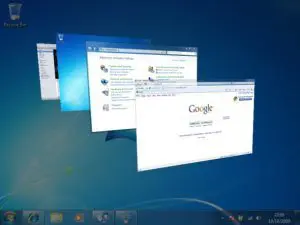
+ Tab – this will do the same as above but it will show the Windows as a 3D preview.
 [/fusion_builder_column][/fusion_builder_row][/fusion_builder_container]